
Video Tutorials
How to create tools in AI tool builder
What is Tool Funnel and How to export tools in AI tool builder
How to use embed code in AI tool Builder
What is workflows in AI tool builder
How to add custom domain in AI tool Builder
Core Features
1. Collect Leads Through Auto Responder
Connect your favorite email marketing platform (like Mailchimp, GetResponse, or Aweber) and automatically collect leads whenever someone uses your tool. This ensures that every user interaction helps you grow your email list for future follow-ups and marketing.
2. Export Tool
Members can export tools they create and use them outside the platform. If the member is not logged in, they will first see an alert message prompting them to log in before the export URL becomes active. This protects access to exported tools.
3. Share Tool
Easily share your tool with others. Logged-in members can directly use the shared tool, while new users will be asked to register and log in before gaining access. This helps you increase both engagement and new sign-ups.
4. Embed Code Feature
Members can generate an embed code to place the tool on their own websites or landing pages. Visitors can then access and use the tool directly through the embedded version, keeping the experience seamless and integrated.
Dashboard
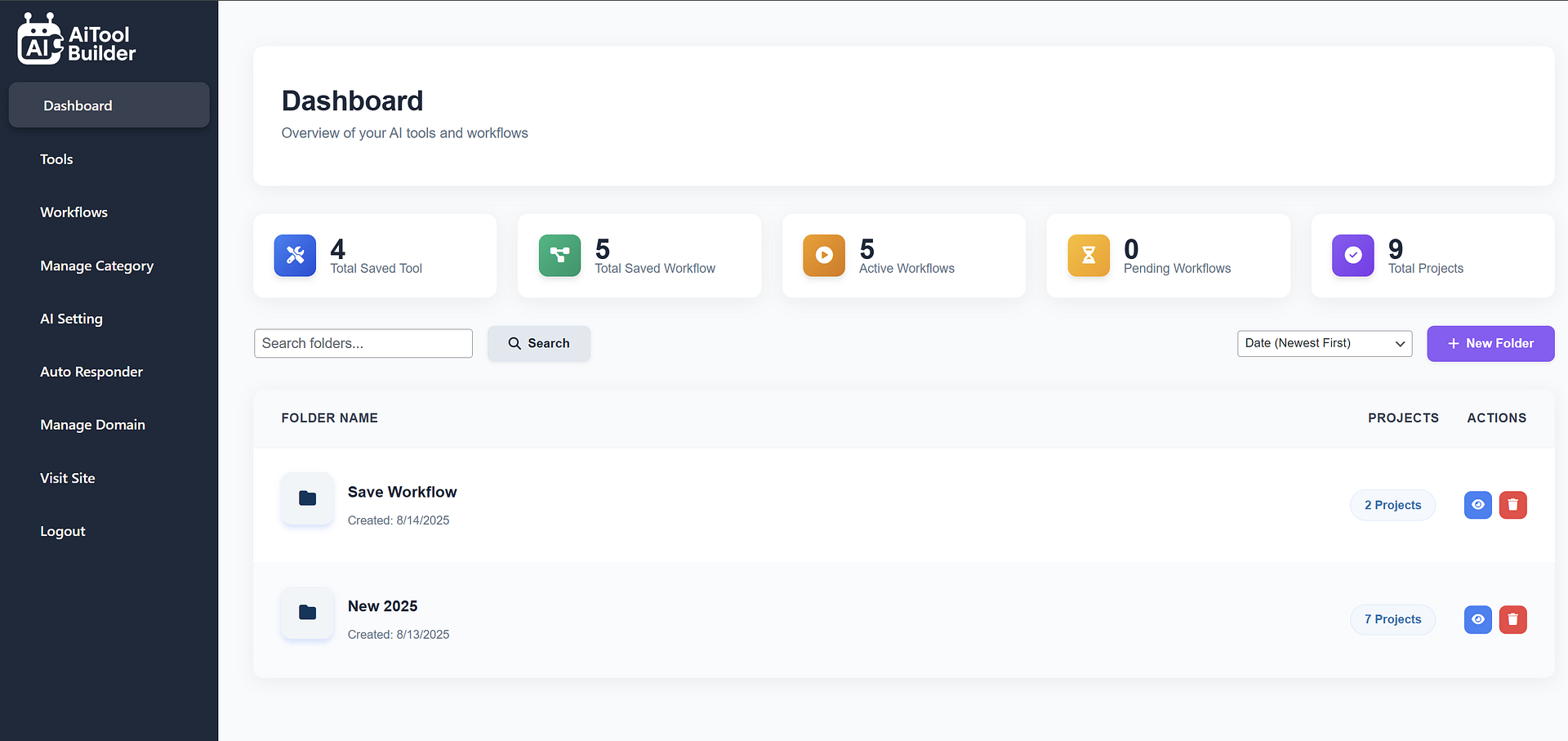
The Dashboard provides a comprehensive overview of all your AI tools and workflows. It's your central hub for managing and accessing everything in the AI Tool Builder.
- Create custom folders using the + New Folder button
- A popup form appears to enter folder name
- Use Search and Sort by Date to find folders quickly
- Get a visual overview of your most active tools
- View recent activity and tool performance metrics
- Quick access to recently edited tools and workflows
Tools Management
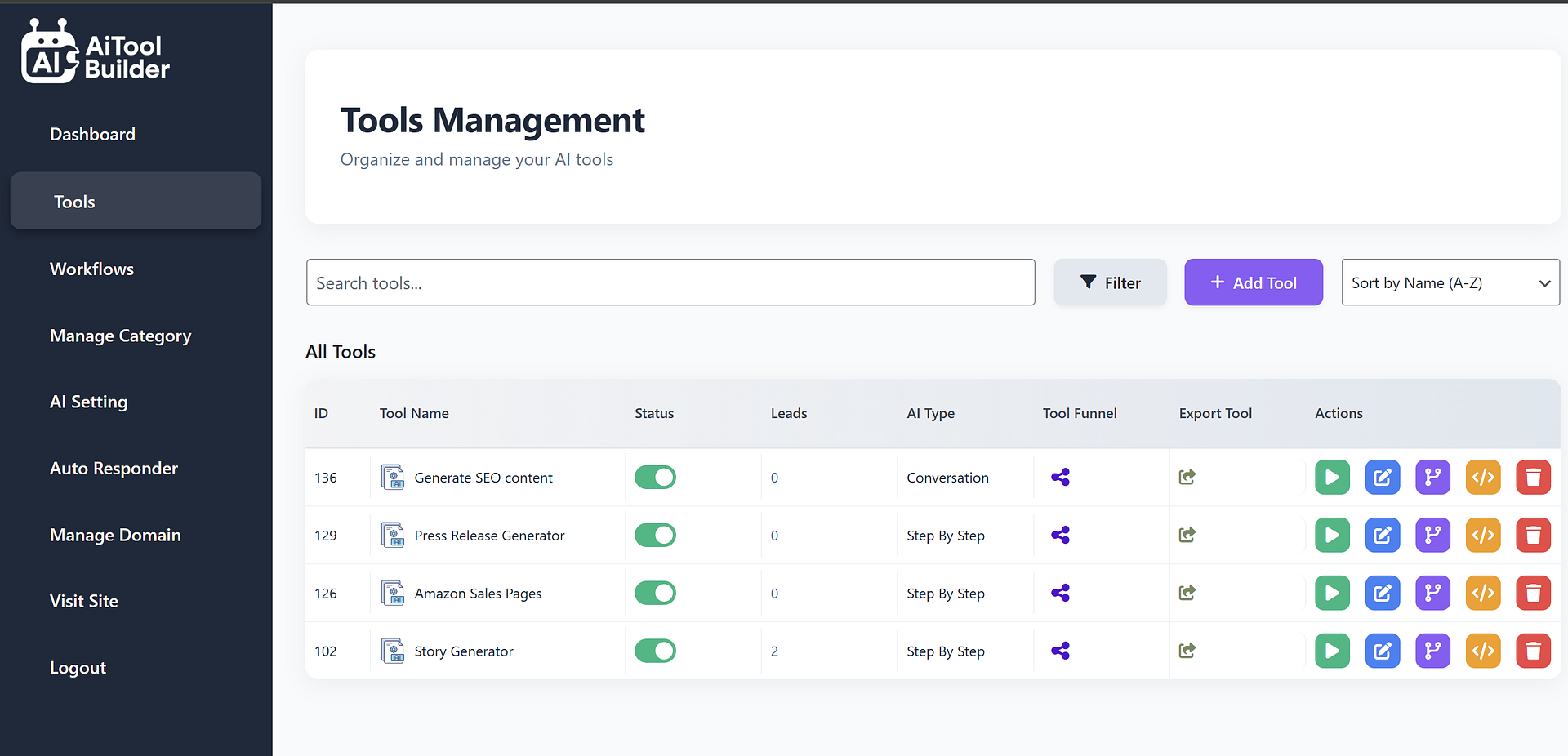
Efficiently manage all your AI tools in one place. Create, organize, and deploy AI tools with our intuitive management interface.
- Automatically fetch and display all created folders
- View all AI tools in a list with search, filter, and sort options
- Create new tools with the Add Tool button
- Select individual tools or select all for batch operations
- Each tool has options: Edit, View, Run, Delete, Share
- Run Tool opens the configuration page with settings and prompts
- Use tokens like [[INPUT]], [[URL]], and [[N]] in your prompts
Workflow Management
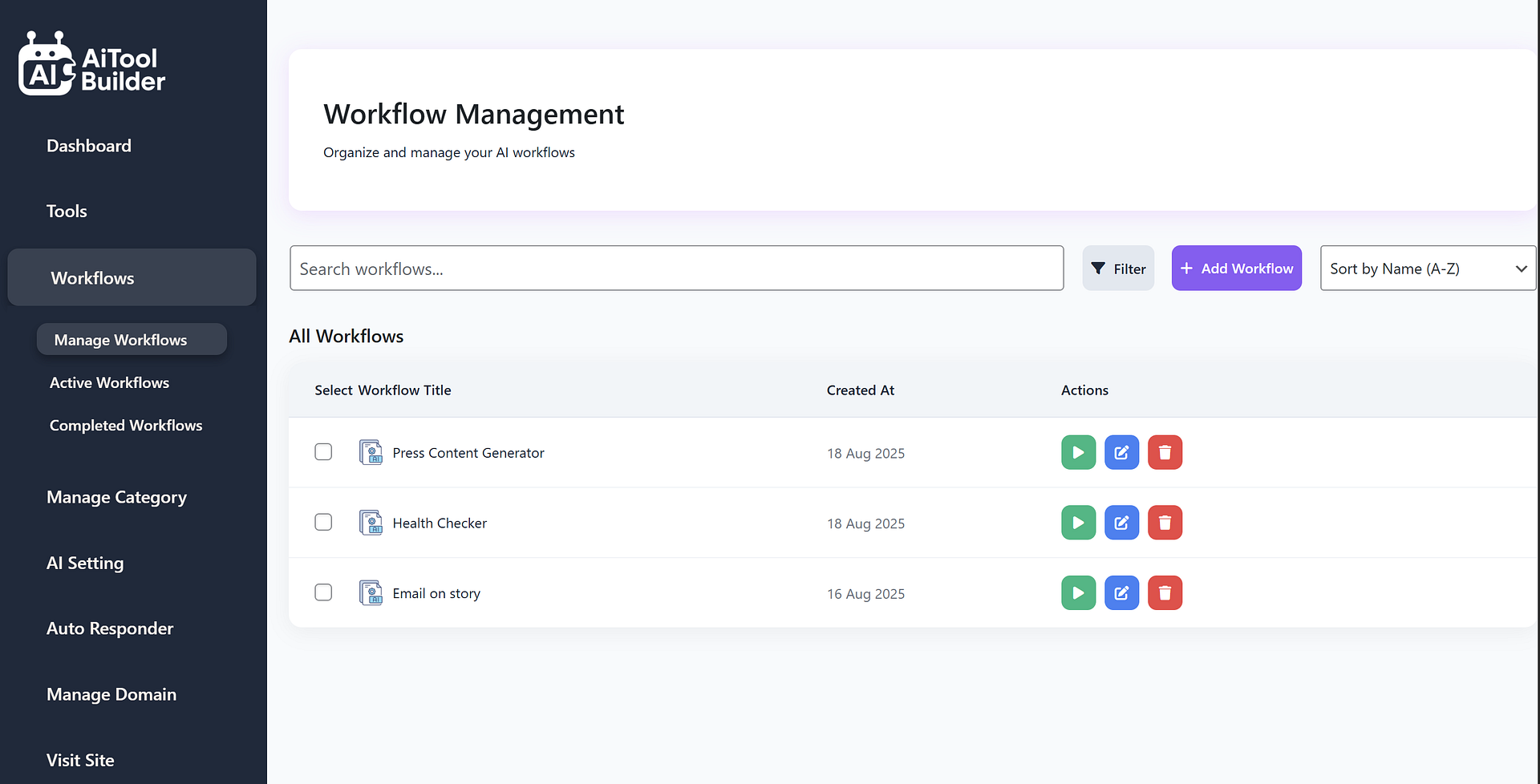
Create and manage complex multi-step AI workflows with our powerful workflow management system. Chain multiple AI processes together for sophisticated automation.
- Similar UI to the Tools page for consistency
- Search, filter, and create new workflows
- Workflow table includes actions: Run, Edit, Delete
- Workflow Status Tabs: Manage, Active, Completed
- Run Workflow by inputting your prompt and selecting a folder
- Visual workflow editor with drag-and-drop interface
- Monitor workflow execution in real-time
Manage Categories
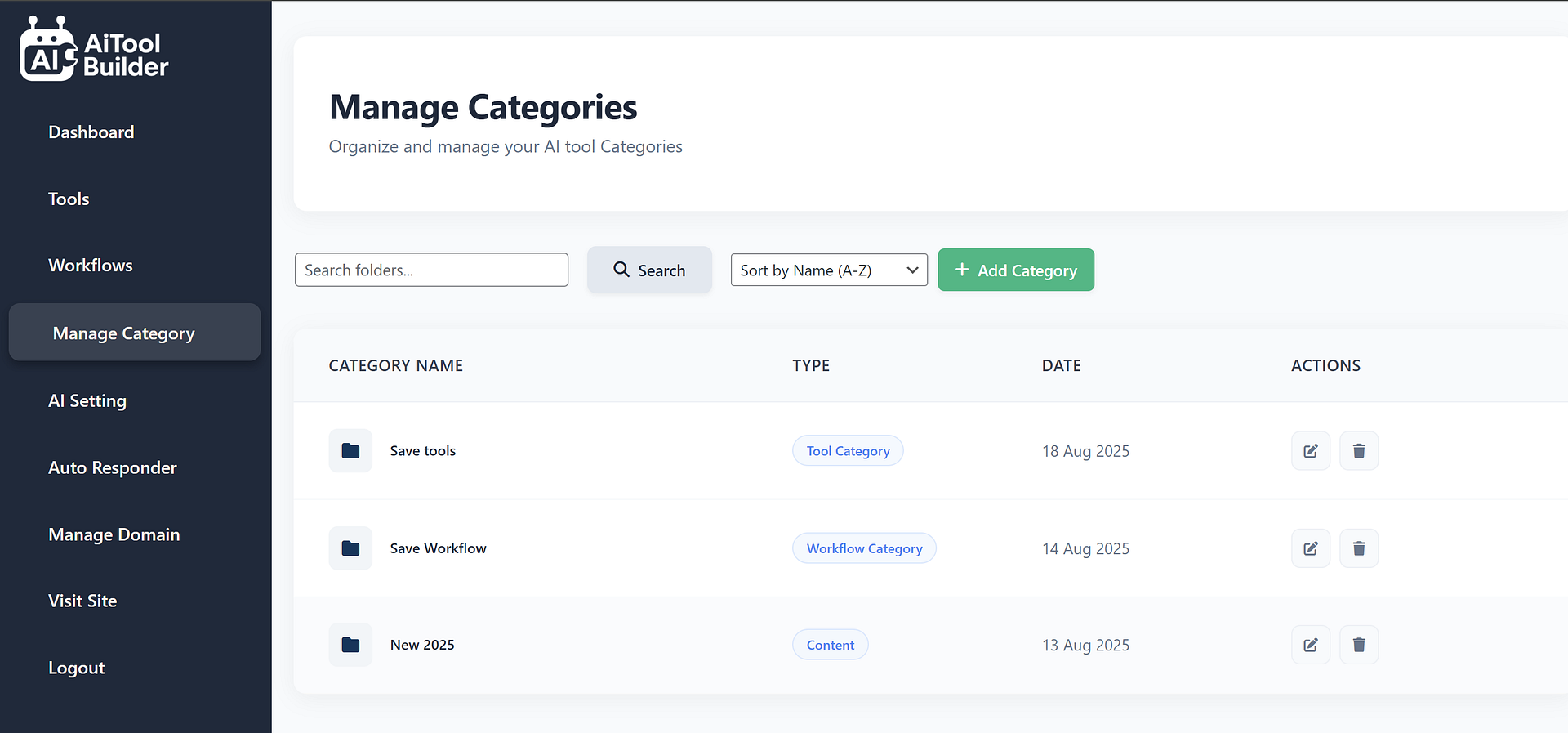
Organize your tools into custom categories for better management and faster access. A well-structured categorization system improves productivity.
- Add new categories with title and type
- All categories listed in a sortable table
- Edit or delete existing categories
- Search, filter, and sort by date functionality
- Assign multiple categories to a single tool
AI Settings
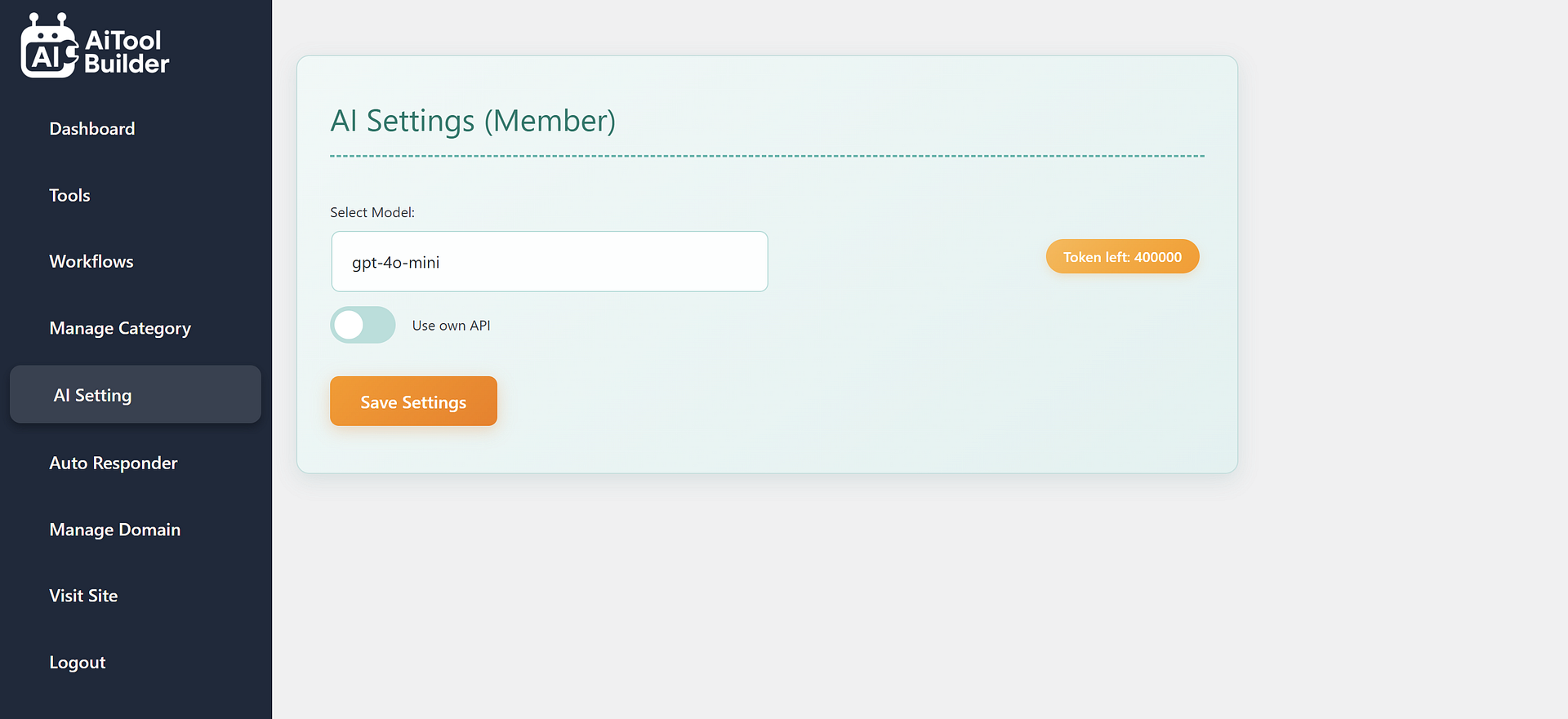
Configure your AI preferences and settings to optimize performance and customize your AI Tool Builder experience.
- Choose from multiple AI models: gpt-4o-mini, gpt-5-mini, gpt-4
- Option to use your own OpenAI API Key
- View and manage your token balance
- Set default parameters for new tools
- Configure response length and creativity settings
Auto Responder Integration
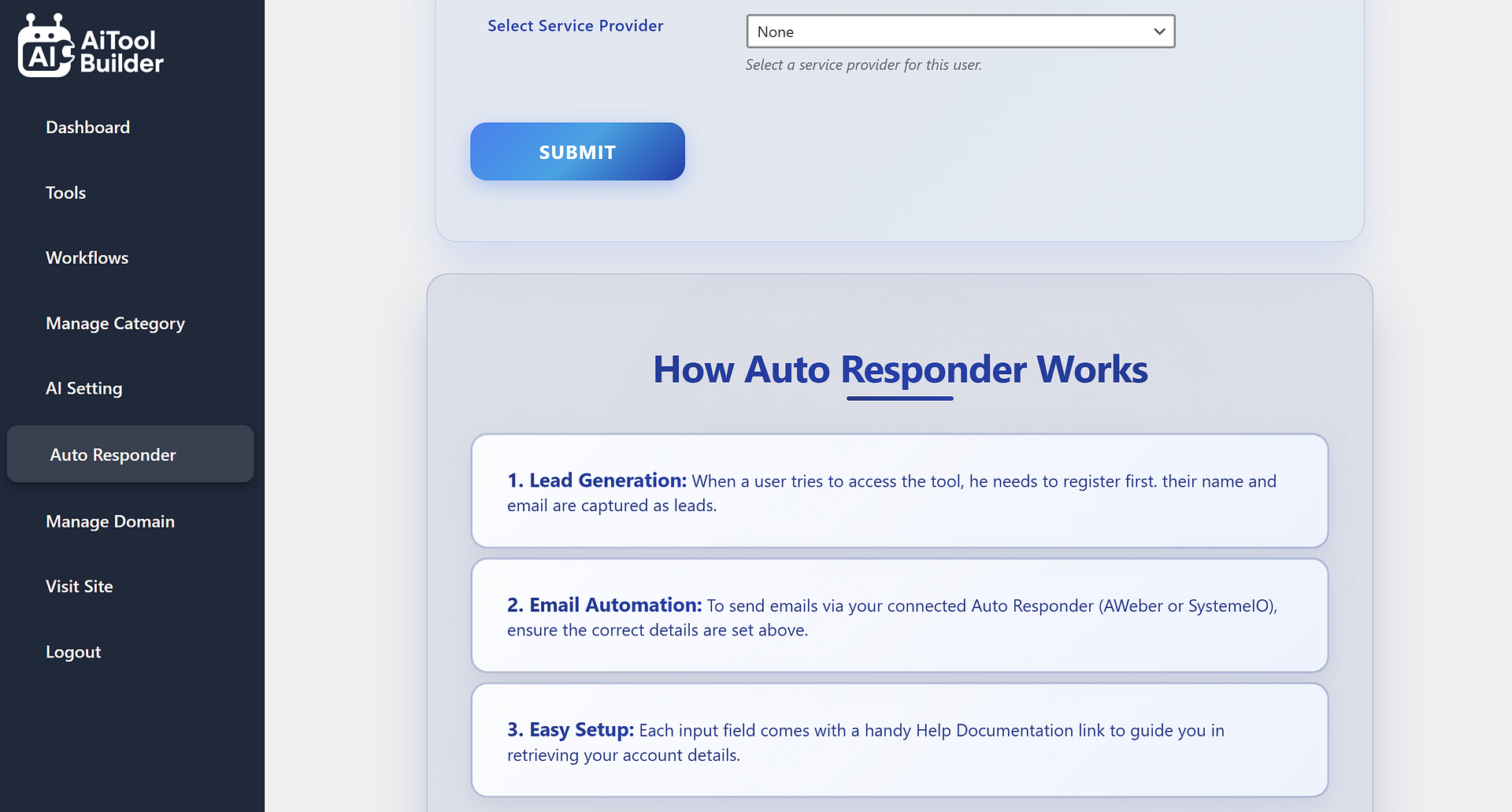
Seamlessly integrate with popular email marketing platforms to capture leads and automate communication when users engage with your AI tools.
- Supported Providers: SystemeIO, AWeber
- Lead Generation: Capture user details during tool interactions
- Email Automation: Send automated emails using selected responder
- Activation Tip: Enable "Add Email to Auto Responder" during giveaway creation
- Easy Setup: Step-by-step documentation guides
- Test email functionality before going live
Manage Domain
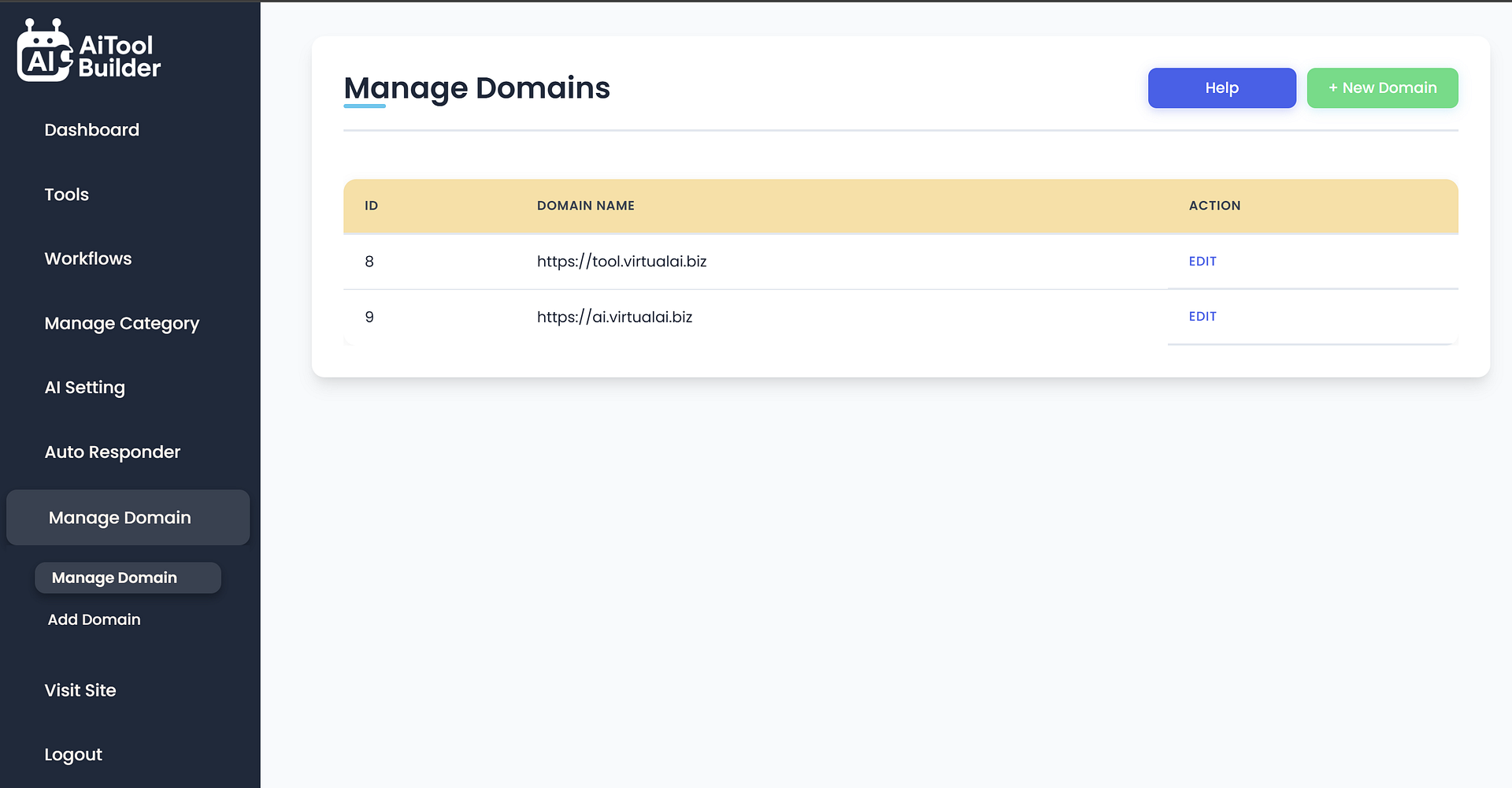
Add a custom domain to host your AI tools for a branded experience. Our domain management makes it easy to connect your domain.
- Add a custom domain to host your tools
- Step-by-step setup instructions via Help documentation
- Click Add Domain and enter your domain name
- Create an "A" record in your DNS with IP: 104.255.175.105
- SSL certificate auto-provisioning
- Domain verification status monitoring